

Vanguard Error VAN 81 is one of those League of Legends popups that feels vague on purpose: you click “OK”, relaunch… and it’s still there, staring at you like a Teemo shroom you definitely stepped on.
Here’s the good news: this is a connection-style Vanguard issue, not a punishment message. Riot has said that after Vanguard’s rollout, fewer than 0.03% of players reported Vanguard-related issues, and most reports were common VAN codes (including -81) that are usually solvable with basic troubleshooting.
Vanguard Error VAN 81: Quick answer
If you just want the fastest path back into League of Legends, start here:
- Fully restart your PC
- Reopen the Riot Client (not just the League window)
- If it still persists, uninstall Riot Vanguard and reinstall League of Legends so Vanguard gets restored
That “restart first, reinstall if it persists” flow is also the official direction Riot gives for VAN -81.
In this short video, you can get a glimpse into how to quickly uninstall and install Vanguard if needed to fix the issue.
Now, let’s slow down for a minute and explain what’s actually happening, because knowing the “why” helps you pick the right fix faster. There is no need to permanently uninstall League of Legends, don’t worry.

What Vanguard Error VAN 81 actually is
Vanguard Error VAN 81 (shown as VAN -81 on Riot’s support pages) is labeled as a connection error.
In plain English: League of Legends is trying to start, authenticate, and talk to Riot’s services, but Vanguard is not successfully “handshaking” with the Riot Client and the game services at that moment. When Vanguard cannot validate the connection state the way it expects, you get kicked back out with Vanguard Error VAN 81.
A useful mental model is this:
- The Riot Client is the front door
- Riot Vanguard is the bouncer
- League of Legends only lets you into the venue if the bouncer is present and responsive
Riot also explicitly states that Vanguard must be active during gameplay and while the League Client is open, and that Vanguard is designed as an on-boot application (meaning restarts matter more than with normal apps). Most importantly, when you have player counts as LoL does today, it’s bound to happen that someone turns off their Vanguard.
Why Vanguard Error VAN 81 happens in League of Legends
Most cases of Vanguard Error VAN 81 fall into one of these buckets:
- Vanguard did not start correctly at boot, or its service is stuck
- The Riot Client is “alive” in the background, but not behaving nicely (common after crashes, sleep mode, or long uptime)
- Network path issues: flaky Wi-Fi, VPN/proxy, aggressive firewall rules, ISP hiccups
- System conflicts: security software, overlays, “low-level” utilities, or unusual background processes interfering
- Edge cases tied to configuration or security posture (more common with other VAN codes, but can overlap)
Riot’s own VAN code guide also notes that VAN connection issues can be caused by the client being left running for a long time, and that most VAN errors are settings or environment conflicts with Vanguard. This almost never has to do with servers being down or any internal server issues, it’s mostly from the user side.
A quick “symptom to fix” table
Use this to pick the most likely fix first:
| What you see | Most likely cause | What to try first |
|---|---|---|
| Error appears instantly when launching | Vanguard did not boot cleanly | Restart PC, then open Riot Client |
| Error appears after waking PC from sleep | Riot/Vanguard services got stuck | Full shutdown, then boot again |
| Error appears only on one network | Network path, firewall, DNS, VPN | Disable VPN, restart router, try hotspot |
| Error appears after updates | Service settings or blocked files | Check Vanguard service, then reinstall Vanguard |
| Error appears after installing utilities | Software conflict | Clean boot, disable overlays, test again |
Before you start fixing anything, rule out the obvious
These checks take 60 seconds and can save you 60 minutes.
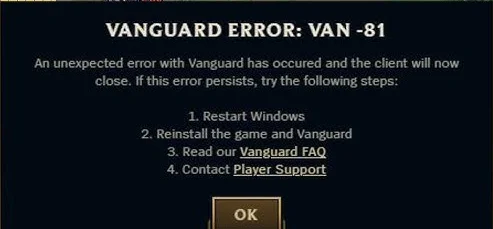
Credit: Mini Tool
Sometimes, the most obvious fixes are in front of you, but it’s very easy to fall into panic mode when this pops-up. Hence, if this does happen, make sure you do the standard routine before delving deeper into the fixes.
Check for server-side problems
If Riot’s services are having issues, Vanguard Error VAN 81 can show up even if your PC is fine. If you see social media lighting up or your friends cannot log in either, pause troubleshooting and wait it out. It sucks that your ranked queue will have to wait, but these things can happen, especially on this scale.
Do a real “full exit” of Riot Client
Closing the League window is not always enough. Quit the Riot Client completely (system tray on Windows), then reopen it and try again. This aligns with Riot’s general advice for VAN connection errors to restart the Riot Client and your computer.
Restart your PC (yes, really)
Because Vanguard is on-boot, a restart is not a meme fix here. Riot explicitly notes you must restart to re-enable Vanguard after disabling it.
If you do only one thing before going deeper, do this.
How to fix Vanguard Error VAN 81 step by step (Windows 10/11)
The goal is to go from “least invasive” to “most nuclear” without wasting time.
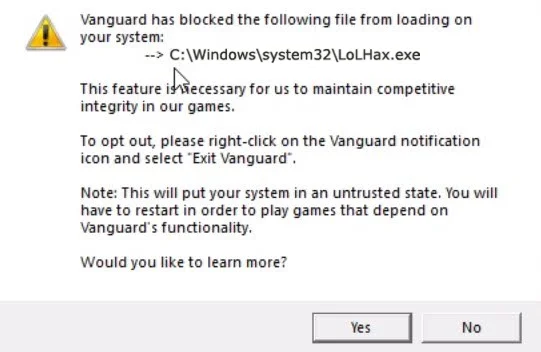
Credit: Riot Games
The VAN 81 error is common for many players, but the problem usually lies in the “incorrect reading” Vanguard does through your system. Hence, fixing the issue usually does not require high “hacking” or software skills. In most cases, with Error 81, the steps you will need to take are as follows:
Step 1: Restart in the right order
- Close League of Legends
- Exit the Riot Client (system tray)
- Restart your PC
- Launch Riot Client first, then launch League of Legends
If Vanguard Error VAN 81 disappears after this, you likely hit a temporary service or session issue.
Step 2: Disable VPNs, proxies, and “gaming tunnels” temporarily
Anything that changes routing can break authentication handshakes.
- Turn off VPN
- If you use a proxy, disable it
- Restart router if your connection has been unstable
Then try launching again.
Step 3: Make sure Riot Vanguard is not disabled
Riot added the ability to turn Vanguard off from the system tray. That’s great… until you forget you did it. Riot also states the game will not run without Vanguard active.
If you exited Vanguard earlier, restart your PC to bring it back.
Step 4: Reinstall Vanguard (fast, usually effective)
If Vanguard Error VAN 81 persists, the “best next step” is often reinstalling Vanguard cleanly.
Riot’s official uninstall steps:
- Open Windows search and type “Add or remove programs”
- Find Riot Vanguard
- Click Uninstall
- Approve the prompts
- Restart your computer afterward
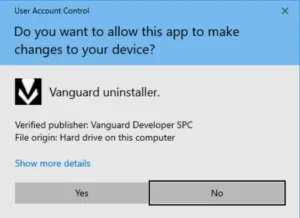
Credit: Riot Games
Then launch League of Legends from the Riot Client. Vanguard should reinstall as part of the flow.
Important note from Riot: uninstalling League of Legends does not necessarily remove Vanguard if you have other Riot titles installed that require it.
Step 5: Reinstall League of Legends (the clean slate play)
If Vanguard Error VAN 81 still shows up after a Vanguard reinstall, do the full fresh reinstall path Riot recommends for VAN -81: uninstall Vanguard and League of Legends, then reinstall both.
This is the highest success rate “normal user” fix, because it resets corrupted files, weird permissions, and failed update remnants in one go.
Step 6: Try a clean boot to eliminate conflicts
If you suspect software conflicts (anti-virus, overlays, device tools), a clean boot is the quickest way to test without uninstalling half your PC. Riot suggests a clean boot approach for Vanguard interference scenarios.
If Vanguard Error VAN 81 goes away in a clean boot, re-enable apps in batches until you find the conflict.
Step 7: Manual uninstall (only if Vanguard refuses to uninstall normally)
Most players will never need this, but Riot provides a manual uninstall method if the standard uninstall fails.
Run Command Prompt as Administrator, then:
sc delete vgc
sc delete vgk
Restart your PC, then delete the Riot Vanguard folder from C:\Program Files\ as Riot instructs.
Then reinstall League of Legends.
What about Mac?
Historically, Riot said macOS did not use Vanguard in the same way as Windows, and they discussed macOS separately in their Vanguard dev blogs.
However, Riot has also referenced rolling out Mac-focused Vanguard support in patch notes, starting passively and moving toward fully operational anti-cheat. Moreover, downloading LoL on Mac isn’t the same as on Windows, but the issue with Vanguard should be approached pretty much the same way.
So if you see Vanguard Error VAN 81 on Mac, treat it like a client-to-services validation issue: restart, fully quit the Riot Client, and reinstall if it persists. The Windows service steps will not map 1:1 to macOS, but the “restart and reinstall” logic still applies.
How to tell if Vanguard Error VAN 81 is something else
Sometimes players see “VAN” and assume the worst. Two important clarifications:
- Vanguard Error VAN 81 is a connection error, not a ban message.
- Riot lists a separate hardware-ban code (VAN 152), which is not the same category at all.
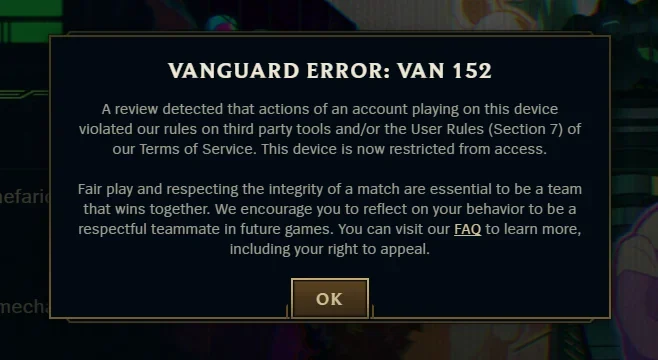
Credit: Reddit
If your message is VAN 152, do not follow this guide, you need Riot Support. If it is VAN -81, troubleshooting is the correct path.
Vanguard Error VAN 81 FAQs
Is Vanguard Error VAN 81 a ban?
No. Vanguard Error VAN 81 is categorized by Riot as a connection error (VAN -81), and it’s handled with restarts and reinstalls, not account penalties.
Why does Vanguard Error VAN 81 keep coming back after it “worked yesterday”?
The common pattern is a boot or service state problem, or a conflict that only appears under certain conditions (sleep mode, updates, security software behavior, or network changes). Riot also notes some VAN connection errors can be triggered after leaving the client running for extended periods.
Can I play League of Legends if I disable Vanguard?
No. Riot states Vanguard must be active during gameplay and while the League Client is open, and if you disable it, you’ll have to restart to re-enable it and play again.
Do I need to uninstall League of Legends to fix Vanguard Error VAN 81?
Not always. Riot’s recommended flow for VAN -81 starts with restarting your PC and the Riot Client, then escalates to uninstalling Vanguard and League of Legends only if the issue persists.
Vanguard Error VAN 81 is annoying, but it’s usually fixable once you treat it like what it is: a Vanguard validation and connection problem between your machine, the Riot Client, and League of Legends. Start with the simple restart-and-relaunch routine, then escalate to reinstalling Vanguard, and finally do the full reinstall if it keeps coming back. Most players get back into queue long before the “nuclear option” is needed.
Aside from Vanguard, if you want to learn more about the game, from in-depth lore, to the current META tier lists, guides on rank distribution, or even to stay up-to-date with all the skin sales, LoLNow is the place for you!




0 Comments