

Sometimes you uninstall League of Legends because you’re taking a real break. Other times you just want to stop a client that’s acting weird, clear space, or reset your mental after a rough streak. Either way, the clean version of this matters.
League doesn’t live in one neat folder. It spreads across your drive and system directories, so a quick uninstall can leave behind leftovers that cause patch errors or strange behavior if you reinstall later.
Quick answer: Close League and the Riot Client, uninstall both in your system settings, then delete leftover Riot/League folders in AppData (Windows) or Library (Mac). This gives you the cleanest reset.
How to uninstall League of Legends on Windows 10/11 – Step by step guide
This is the most reliable way to uninstall League of Legends on Windows without leaving behind the usual clutter. The steps below aim for a clean removal, not just a quick one.
Step 1: Close League of Legends completely
Exit the game client. If it’s open, click the X and choose Exit rather than leaving it running in the background.
Step 2: Exit the Riot Client from the system tray
Click the hidden icons arrow in your taskbar, right-click the Riot Client icon, and select Exit. If you skip this, Windows may block parts of the uninstall LoL process.
Step 3: Open Windows “Installed apps”
Go to Settings → Apps → Installed apps (or Apps & features on Windows 10).
Step 4: Uninstall League of Legends
Search for League of Legends and click Uninstall.
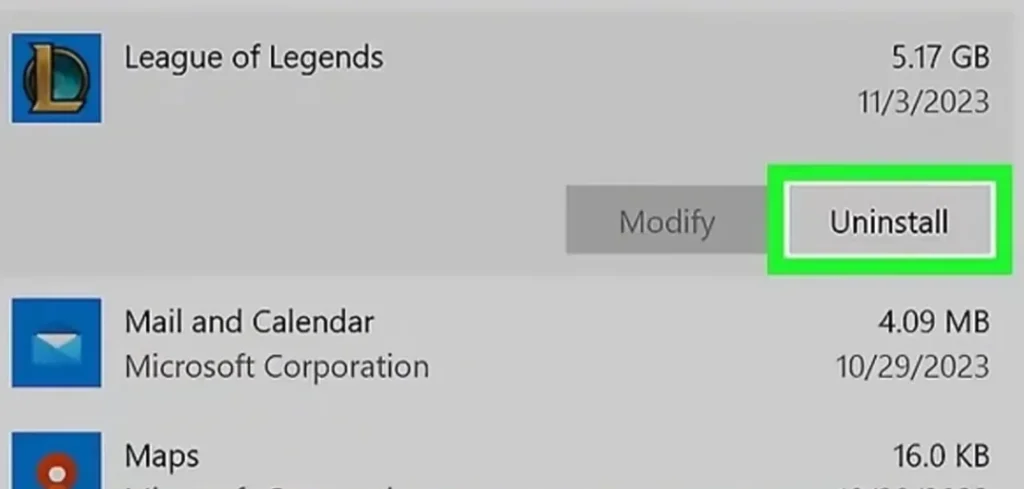
Step 5: Uninstall the Riot Client (recommended)
If you want a truly clean slate, remove the Riot Client too. This is especially helpful if you’re uninstalling League of Legends to fix persistent client issues.
Step 6: Check your install drive for leftovers
Most installs live in C:\Riot Games\, but if you installed LoL on another drive, check that location as well and delete any remaining Riot Games or League of Legends folders.
Step 7: Remove AppData leftovers
Open File Explorer and paste these paths one at a time:
- %localappdata%
- %appdata%
Delete folders related to Riot Games or League of Legends. This step is where most “I thought I uninstalled it” issues get solved.
Step 8: Restart your PC
A restart clears locked files and ensures the uninstall League of Legends process is actually complete.
If you prefer a visual walkthrough, this quick Windows guide covers the core uninstall steps in a simple, no-nonsense format.

How to uninstall League of Legends on Mac – Step by step guide
On macOS, the biggest mistake is assuming dragging the app to Trash is enough. A clean uninstall LoL approach includes removing leftover support files.
Step 1: Quit League and the Riot Client
Use Command + Q on both apps if needed. Make sure they’re closed before you delete anything.
Step 2: Remove the applications
Open Applications and move both League of Legends and the Riot Client to Trash.
Step 3: Open your Library folder
In Finder, press Command + Shift + G and type:
~/Library
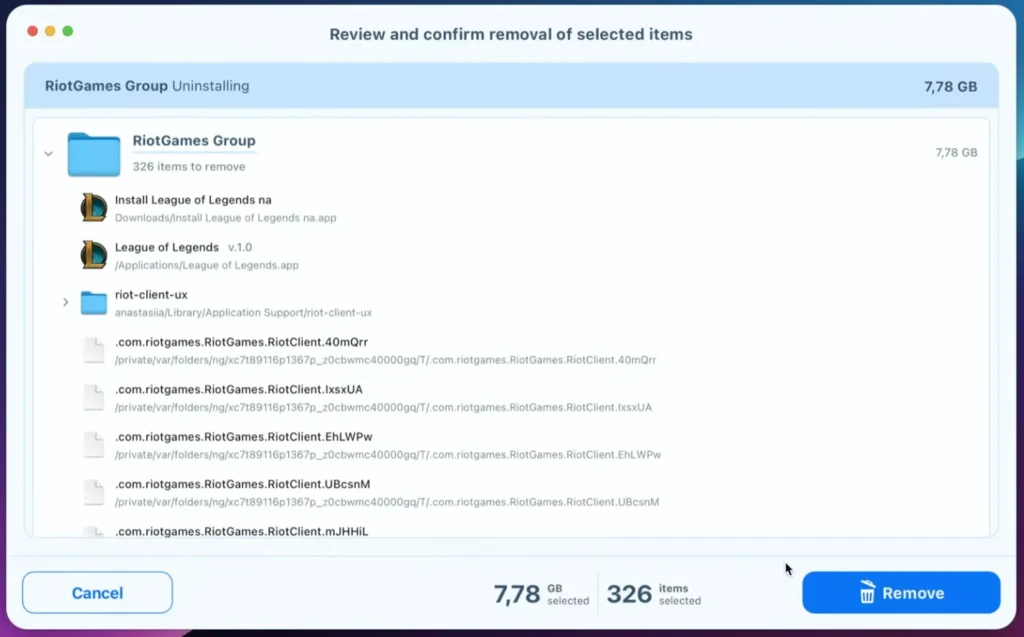
Step 4: Delete Riot/League support files
Look for folders named Riot Games or League of Legends in areas like Application Support, Caches, and Preferences. Remove what’s clearly tied to Riot.
Step 5: Empty Trash
This finalizes the uninstall League of Legends cleanup on Mac.
This Mac-focused video shows the same idea: remove the app, then deal with the hidden leftovers that make a real difference later.
Removing leftover files after uninstalling League of Legends
Even after you uninstall LoL through the normal system tools, you may still find logs, cached files, or older patch data. These aren’t harmful, but they can cause weird patch loops or slow launches if you reinstall later.
On Windows, the two biggest hotspots are your install directory and AppData. After uninstalling, check:
- C:\Riot Games\ (or your custom install drive)
- %localappdata%
- %appdata%
Delete folders clearly tied to Riot Games, League of Legends, or the Riot Client. This is the step that usually clears “ghost issues” from older installs.
On Mac, leftovers usually live under Application Support, Caches, and Preferences inside your Library. If your goal is a true reset, those support files matter just as much as the app itself.
Troubleshooting uninstall issues
If you can’t uninstall League of Legends on Windows, the most common cause is that the game or Riot Client is still running. Close both completely, restart your PC, and try again. If the uninstall still fails, follow Riot’s official uninstall and reinstall instructions for the safest path through stubborn errors.
For edge cases like permission errors, missing uninstall entries, or older installs that refuse to disappear, the community often documents fixes in real time. The League of Legends subreddit can be helpful when you want to see what worked for other players with the same issue.

Why players choose to uninstall League of Legends
People uninstall League of Legends for all kinds of reasons, and most of them are completely valid. Sometimes it’s a mental reset after a brutal streak. Sometimes it’s practical, like clearing space or troubleshooting a client that suddenly decided it hates your PC.
It also happens when the broader game experience feels off. If you suspect a rough night is more technical than personal, checking the LoL server status can save you from blaming your mouse, your teammates, or the universe.
If you’re stepping away long-term and want a quick snapshot of how big the game still is and how it’s evolved over time, it’s worth checking the publisher overview at Riot Games and the broader background on League of Legends.
Extra context for curious players
League of Legends has been one of the defining competitive games of the last decade, which is partly why uninstalling can feel more dramatic than it should. If you want a quick background refresher, the overview on League of Legends history offers simple context.
If your uninstall is more of a reset than a goodbye, checking the current LoL player count can give you quick perspective on how the game’s ecosystem looks right now.
For ongoing updates and fresh guides, you can browse LoL news and the broader LoL guide hub. And if you want official ecosystem context from the publisher, Riot’s main site is here: Riot Games.
How to reinstall League of Legends on Windows – Step by step guide
A clean reinstall is one of the best ways to fix corrupted files, broken patches, or strange client behavior. Riot uploads new setup files after patches, so reinstalling from the latest installer helps ensure you’re not carrying old or damaged parts forward. This process aligns with Riot’s own reinstall recommendations. Riot’s reinstalling League of Legends guide.
Step 1: Confirm the old install is fully removed
Before you reinstall, double-check that the previous League folder is gone. The default path is:
C:\Riot Games\League of Legends
If you used a different drive, check that location too.
Step 2: Delete old setup files
If you still have previous installer files on your desktop or downloads folder, remove them so you start fresh.
Step 3: Restart your PC
This clears any locked files before you begin the reinstall.
Step 4: Download the latest installer from the official League page
Use the official League of Legends website to ensure you’re grabbing the newest setup file.
Step 5: Run the installer and prefer the default drive
Run LeagueofLegends.exe. If possible, install to the default C:\ drive unless you have a specific reason to use another location.
Step 6: Launch the client after installation
The launcher should open automatically. If not, use the desktop shortcut or run LeagueClient.exe from your install directory.
Step 7: Optional reset of your Config folder
If you suspect your settings were part of the problem, you can reset them:
- Launch League and log in.
- Minimize the client and open your install folder.
- Go to C:\Riot Games\League of Legends.
- Delete the Config folder.
- Return to the client and launch a custom game to regenerate a fresh Config folder.
How to reinstall League of Legends on Mac – Step by step guide
If you’re reinstalling on macOS to fix client bugs, patch loops, or corrupted files, the key is starting clean. A fresh install works best when the old Riot and League leftovers are gone first.
Step 1: Confirm League of Legends and Riot Client are fully removed
Open your Applications folder and make sure both League of Legends and the Riot Client are not there. If they are, move them to Trash and empty it.
Step 2: Remove leftover Riot/League files in your Library
In Finder, press Command + Shift + G and search these locations:
- ~/Library
- /Library
Look for folders named Riot Games or League of Legends inside places like Application Support, Caches, and Preferences, and delete what clearly belongs to Riot/LoL.
Step 3: Restart your Mac
This clears any background services or locked files that can cause install hiccups.
Step 4: Download the latest installer
Grab the newest version from the official League of Legends website to ensure you’re not reinstalling from an outdated setup file.
Step 5: Install the Riot Client first
Open the downloaded installer and follow the prompts. The Riot Client will handle the rest of the League installation flow.
Step 6: Let the game download fresh files
Once the Riot Client is running, select League of Legends and allow it to download the latest game files. This step is where a clean reinstall usually pays off.
Step 7: Launch and verify the client works normally
Log in, let any final patches complete, and open a Practice Tool session or a custom game to confirm everything loads smoothly.
Step 8: Optional cleanup if problems return
If you still hit update loops or crashes, repeat Step 2 and ensure you didn’t miss a cache or support folder. On Mac, those leftover files are the most common reason a “fresh” reinstall doesn’t feel fresh.
Frequently asked questions about uninstalling League of Legends
Does uninstalling League of Legends delete my account?
No. Your Riot account, skins, champions, and progress are tied to your login, not your computer. When you uninstall League of Legends, you’re only removing local game files.
Should I uninstall the Riot Client too?
If you’re troubleshooting bugs or want a clean reset, yes. Removing the Riot Client helps avoid leftover services and cached data that can carry problems into a reinstall.
Why do I still see Riot or League folders after uninstall?
The default uninstaller doesn’t always remove logs, cached files, or configuration data. That’s why the manual AppData (Windows) or Library (Mac) cleanup step matters if you want a truly clean uninstall LoL setup.
How much space will uninstalling LoL free?
It depends on your install and patch history, but League plus the Riot Client can take up a noticeable chunk of storage. If you also remove leftover folders, you’ll usually recover more space than a basic uninstall alone.
What if Windows won’t let me uninstall League of Legends?
This is often because the game or Riot Client is still running in the background. Close both fully, restart your PC, and try again. If it still fails, uninstalling the Riot Client first sometimes makes the League removal smoother.
Is reinstalling worth it for client errors?
Yes. A clean uninstall followed by a reinstall from the latest installer is one of the most reliable fixes for patch loops, corrupted files, and slow or unstable clients.
Will reinstalling reset my in-game settings?
Not necessarily. Some settings can persist unless you delete the Config folder as part of your reset. If your goal is a full “fresh start,” that extra step is worth doing after reinstalling.
Is the Mac uninstall different from Windows?
The idea is the same, but file locations are different. On Mac, the most common mistake is only deleting the app. Removing Riot and League support files from the Library folders is what makes the uninstall truly clean.
Do I need to uninstall Teamfight Tactics separately?
On PC, TFT is installed through the same League client. If you uninstall League and the Riot Client, you’re effectively removing TFT too. On mobile, you’d uninstall TFT like any other app.
When you’re ready to come back to LoL
If you’re uninstalling League of Legends because you need a break, that’s reason enough.
If this is a troubleshooting uninstall, stick to the simple order: remove League, remove the Riot Client, clear the leftover folders, then install the newest version. It’s not exciting, but it’s the quickest way to stop old files from messing with your next patch.
And if you return later, you’ll be starting fresh instead of carrying old files and settings into your next install.
Want more LoL context before you decide whether this is a break or a full reset? You can check the LoL player count, see your money spent on LoL, or browse the latest LoL news and the guide hub.




0 Comments