

Short answer: Head to the official League of Legends website, hit “Play for Free,” and grab the installer. On PC, you’ll install the Riot Client, League of Legends, and Riot Vanguard (which needs a restart). On Mac, you just drag the installer to your Applications folder and let it patch.
League of Legends (LoL) is the titan of the MOBA genre, where strategy meets reflex-heavy chaos. Getting it onto your machine should be the easy part, but sometimes the “download LoL” process can feel like a ranked match against a fed assassin – confusing and painful.
Whether you are a seasoned veteran building a new rig or a complete beginner wondering why everyone is talking about Arcane, this guide will walk you through exactly how to download and install League of Legends on both PC and Mac.
Below you will find the step-by-step instructions, system specs, and a troubleshooting section for when things go wrong.
League of Legends download sources at a glance
If you only remember one rule: always download from the official source. Here is the quick map of where to get the correct version.
| Platform | Official download source | What you should expect |
| PC (Windows) | Official League of Legends site | Riot Client install + League install + Riot Vanguard install + Required Restart |
| Mac (macOS) | Official League of Legends site | .dmg installer + direct patch (Embedded Vanguard included) |
Important note: Be sure to select the region you are downloading the game for in the top right corner of the website!

How to download LoL on PC – Step-by-step guide
What you need on PC: A stable internet connection, administrator access (for the anti-cheat), and roughly 25-30 GB of free space to be safe. The initial LoL download is small, but the client will fetch the rest of the game files during installation. A lot has changed since the release date of LoL and the game needs to download and install additional patches and updates once installed.
Go to the official League of Legends download page
Start by visiting the official League website. This ensures you aren’t getting a corrupted file from a third-party site. Moreover, it ensures a safe and guaranteed download of the game. In case you have specific questions or issues, visiting the original website might help you learn more about it.
Click “Play for Free” and create an account
If you don’t have a Riot Account, you will need to create one now. If you already have an account (maybe from Valorant or TFT), you can skip the creation step and just look for the “Already Registered? Click to Download” link.
Riot requires you to create your account prior to downloading the game, to ensure a much smoother transition into the gameplay, once the game is fully installed.

Download the LoL installer
Click the download button for Windows. This will save a small file (usually called Install League of Legends.exe) to your computer.
Important: Before you click download, double-check the region displayed on the webpage (e.g., North America, EU West). While you can change regions later, downloading the correct installer for your location saves you from patching the wrong server files later on.
Run the installer and install the Riot Client
Open the file you just downloaded. This will first install the Riot Client, which is the hub for all Riot games. Do not close the window if it looks like it paused; it is likely just verifying files.
Credit: Riot Games
You will likely see a Windows User Account Control (UAC) prompt asking if you want to allow this app to make changes to your device – click Yes. This step installs the Riot Client, which acts as the unified launcher for Valorant, TFT, and LoL.
Install League of Legends
Once the Riot Client is open, select League of Legends and hit Install. You can choose your install location here.
Pro-tip: Installing on an SSD will drastically reduce your loading times, ensuring you aren’t the person holding up the lobby. Installing on an SSD (Solid State Drive) is virtually mandatory nowadays. Trust us, you don’t want to be queued for ranked and holding up the lobby – YOU WILL hear about it once you finally load up.
Install Riot Vanguard and restart
This is the step most people miss. The client will automatically prompt you to install Riot Vanguard, the required anti-cheat software. Once it installs, you must restart your computer. The game will not launch if you skip this restart.
The Vanguard installation is vital for the game, due to it having serious issues with scripters and bots in the past. The software first came out for Valorant, but in 2024, Riot implemented it to League, as well. Moreover, Vanguard is not directly compatible with Mac software. However, fret not, as you can play the game without it on Mac.
Launch and patch
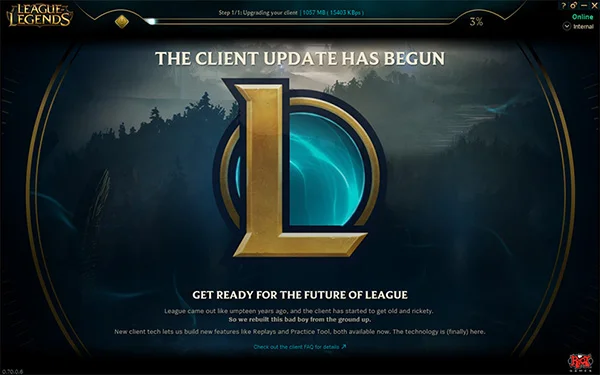
After rebooting, open the Riot Client, log in, and hit Play. The game may need to do a final patch. Once that is done, you are ready to enter Summoner’s Rift. After that, you are actively contributing to the player count of the game.
Credit: League of Legends
Generally, once you finish all of the steps above, everything else from that point will be automatized, like patching and updating the game.
How to download LoL on Mac – Step-by-step guide
Mac gaming has come a long way, and yes, League runs surprisingly well on modern Apple Silicon (M1, M2, M3) chips. The download LoL process for Mac is actually slightly simpler than on PC because the anti-cheat is less intrusive.
Visit the official download hub
Just like on PC, head to the official League of Legends site. The site should automatically detect you are on macOS, but if not, look for the text that says “Download for Mac.” If it doesn’t, look for a small text link below the main button that says “Download for Mac installer.”
For Mac users, the process might seem fairly simple, but there are plenty of guides online, like this video, that can help guide you through the entire process step-by-step.
Safety check: Always ensure the URL in your browser bar says leagueoflegends.com or riotgames.com to avoid phishing sites looking to steal account credentials.
Download the .dmg installer
Click the download button to grab the .dmg file. It is a relatively small download compared to the full game. Depending on your browser settings, Safari or Chrome may ask you where to save it, just toss it on your Desktop or in your Downloads folder for easy access.
Install the game
Open the .dmg file. You will see the classic macOS installation window. Drag the League of Legends icon into the Applications folder. Do not try to run it directly from the disk image!
Credit: Reddit
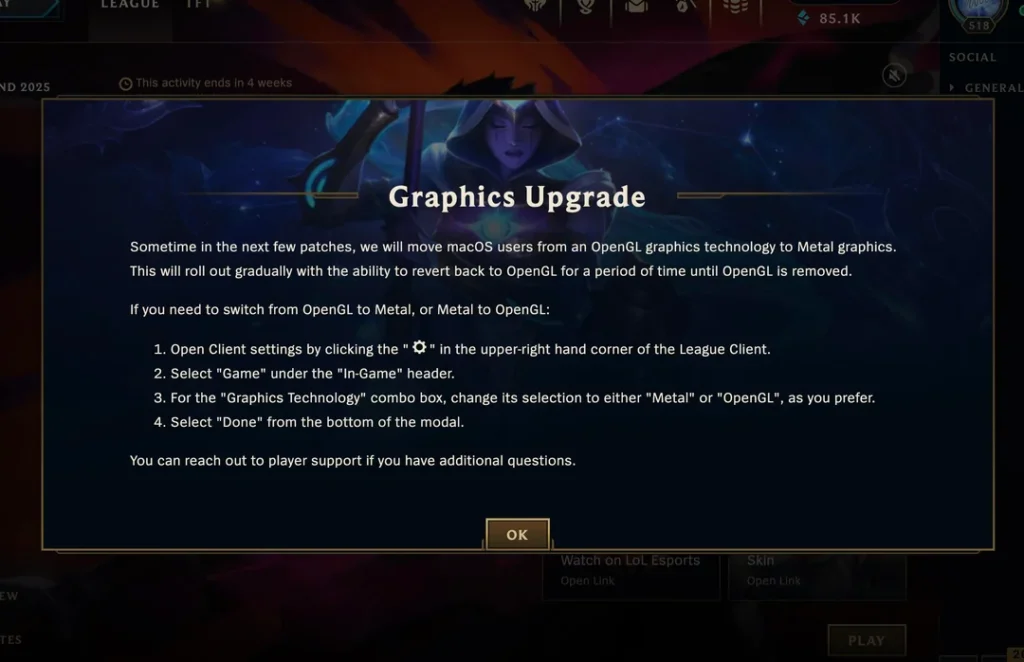
Mac support and integration is always a tricky subject and Riot had a fair share of issues with it. Make sure you always double-check your specs before installing, so you don’t get disappointed down the road.
Crucial Step: You must manually drag the League logo onto the Applications folder. Do not try to run the game by double-clicking the icon inside this window; that will only launch a temporary instance that won’t save your files properly.
Open from Applications and let it patch
Go to your Applications folder and launch League of Legends. The first time you open it, macOS might ask if you trust the application – say yes. The client will then open and start downloading the full game files.
This is the perfect time to grab a coffee and learn more about the Worlds if you are interested in the eSports scene, as this step depends entirely on your internet speed.
Log in and play
Unlike Windows, you usually do not need a full system restart for Vanguard on Mac, as it uses an “embedded” version (mVG) that works within the game client. Just log in with your Riot Account and hit Play.
Note: If you are playing on a newer Mac with an M-series chip, the game runs natively, so ensure you aren’t running any unnecessary background apps to get the crispest frame rate possible. Hit Play, and prepare for the tutorial!
PC and Mac system requirements
League is famous for running on a “potato,” but for a smooth experience where you can actually see Lux’s laser coming, you want to meet the recommended specs. Moreover, if you plan on using tools for live-stats, it’s vital that you meet the requirements.
| Component | Minimum Specs (PC) | Recommended Specs (PC) | Mac Requirements |
| CPU | Intel Core i3-530 / AMD A6-3650 | Intel Core i5-3300 / AMD Ryzen 3 1200 | M1 or Intel Core i5 |
| GPU | NVidia GeForce 9600GT / AMD HD 6570 | NVidia GeForce GTX 560 / AMD Radeon HD 6950 | AMD Radeon Pro 560 / Intel HD 4000 |
| RAM | 2 GB | 4 GB | 4 GB (8 GB recommended) |
| Storage | 16 GB HDD | 16 GB SSD | 12 GB available space |
| OS | Windows 10/11 (64-bit) | Windows 10/11 (64-bit) | macOS 10.13.6 or later |
Note for Windows 11 users: You must have TPM 2.0 enabled in your BIOS for Vanguard to work. If you get a “VAN 9001” error, this is usually the culprit.
Troubleshooting: Common install errors
Sometimes the download LoL process gets stuck. Here are the quick fixes for the most common headaches.
- “We couldn’t install a required dependency” – This often happens on Windows if your visual C++ libraries are outdated. The easiest fix is to run Windows Update and make sure everything is current.
- The download speed drops to 0.1 KB/s – Do not panic. This is usually the Riot Client writing files to your disk rather than downloading them. Let it sit for 15 minutes. If it is still stuck, pause and resume the download.
- “Vanguard not initialized” – Did you restart your PC? If you did and it still fails, check your system tray (bottom right). If the red Vanguard icon is not there, you might need to uninstall Vanguard (not the whole game) via “Add or Remove Programs” and let the Riot Client reinstall it.
- Mac: “Unidentified Developer” warning – Go to System Settings > Privacy & Security. Scroll down and you should see a note about League of Legends being blocked. Click Open Anyway.
FAQ: League of Legends download questions
Is League of Legends free to download?
Yes, the download LoL process is 100% free. The game makes money through optional cosmetic items like skins for champions. You never have to pay to play or to win.
How big is the LoL download size in 2025?
The initial installer is tiny (under 100MB), but the full game takes up about 22 GB of space once installed. We recommend keeping at least 30-40 GB free to accommodate future updates and patches, which happen every two weeks.
Can I play League of Legends on a Mac M1/M2/M3?
Absolutely. Riot has updated the game to run very smoothly on Apple Silicon. In fact, many users report better performance on an M1 Air than on older gaming laptops.
Why is my download stuck at 99%?
This is a classic “feature” of the client. At 99%, the installer is usually verifying the integrity of the files it just downloaded. Do not close it. It can take anywhere from 2 to 10 minutes to finish this verification process.
Once you have successfully finished the download League of Legends process, the real challenge begins: actually learning the game. You are about to enter a world with over 160 champions, endless item combinations, and a very passionate community.
Take your time in the tutorial, find a champion that looks cool to you (maybe Jinx or Garen to start), and mute the chat if people get too spicy. The Rift is waiting – good luck, Summoner!
If you want to learn more about the current best tier lists of champions, hidden game mechanics, or simply want to learn the lore of the game, make sure to check out LoLNow for useful information.




0 Comments